Getting Started with BikeOffice
BikeOffice is a web app, so there is nothing to install. You open it in a normal web browser (Chrome, Safari, Edge or Firefox) on a computer, tablet or phone.
Why start here
A few minutes of setup makes every later task faster. Once your store's suppliers, cards and price list are in place, your whole team looks things up the same way and gives customers the same answers.
Log in
- Open your browser and go to your BikeOffice web address (for most shops this is app.bikeoffice.se).
- Enter the email address and password for your shop's account.
- Select Log in.
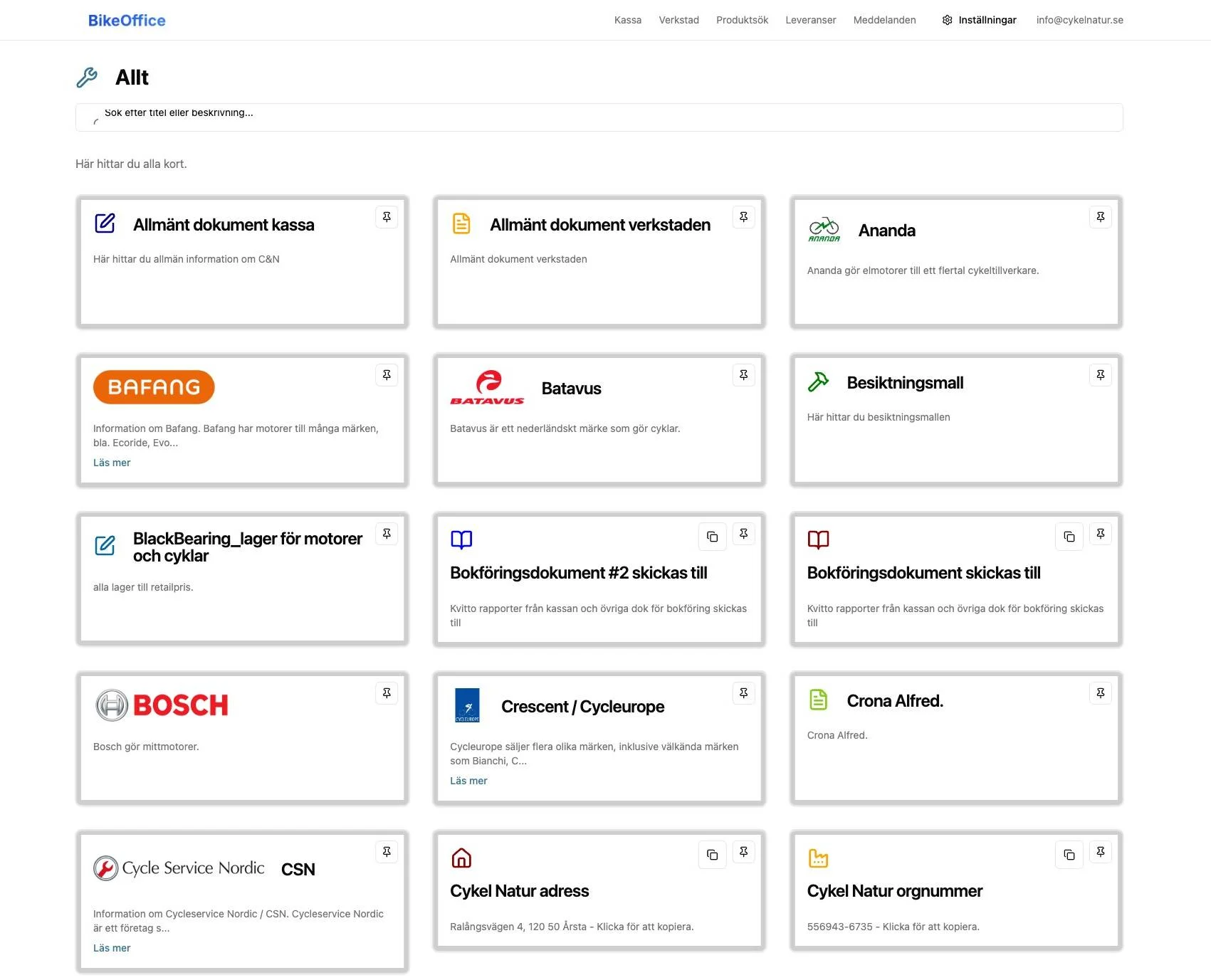
- You land on the All (Allt) page, which shows every card in your account.
If you don't have a login yet: if your shop already uses BikeOffice, ask the person who set up the account. Otherwise, register with your email address at app.bikeoffice.se/register — 30 days free trial, no card and no commitment.
Find your way around
Along the top of the screen you will always see the main menu:
- Kassa (Counter) — help and quick info for the checkout.
- Verkstad (Workshop) — tools, guides and systems for mechanics.
- Produktsök (Product Search) — search bike parts across suppliers.
- Leveranser (Deliveries) — delivery-related pages.
- Meddelanden (Messages) — internal messages.
- Inställningar (Settings) — where you set up your store, cards, suppliers and price list.
- Your account email — shown on the far right.
To open any feature, select its name in the top menu.
Search on any page
Most pages have a search box near the top that reads "Search by title or description…" (Sök efter titel eller beskrivning…). Start typing and the cards filter instantly. This is the quickest way to find one supplier or one document when a page has many cards.
Set up your store (recommended first steps)
Open Inställningar (Settings) from the top menu. In the left-hand menu you will find:
- Card settings (Kortinställningar) — add your own documents and copy snippets. See Cards.
- Supplier settings (Leverantörer inställningar) — choose which suppliers appear for your shop.
- Store (Butik) — your shop's basic details.
- Price list settings (Prislista inställningar) — connect your price list. See Price List.
- Dark mode (Mörkt läge) — a toggle to switch the app to a darker colour scheme, easier on the eyes in a dim workshop.
You don't have to do everything at once. Start with the suppliers you use most and the two or three documents your staff ask about every day.
Log out
Open Settings and select Log out (Logga ut) at the bottom of the left menu.
Next step
Head to Product Search — for most shops this is the feature that saves the most time each day.